
Prerequisites & Requirements
- FloCafe installed and launched for the first time.
- Your store address, phone number, and tax registration number (e.g. HST/GST or VAT ID).
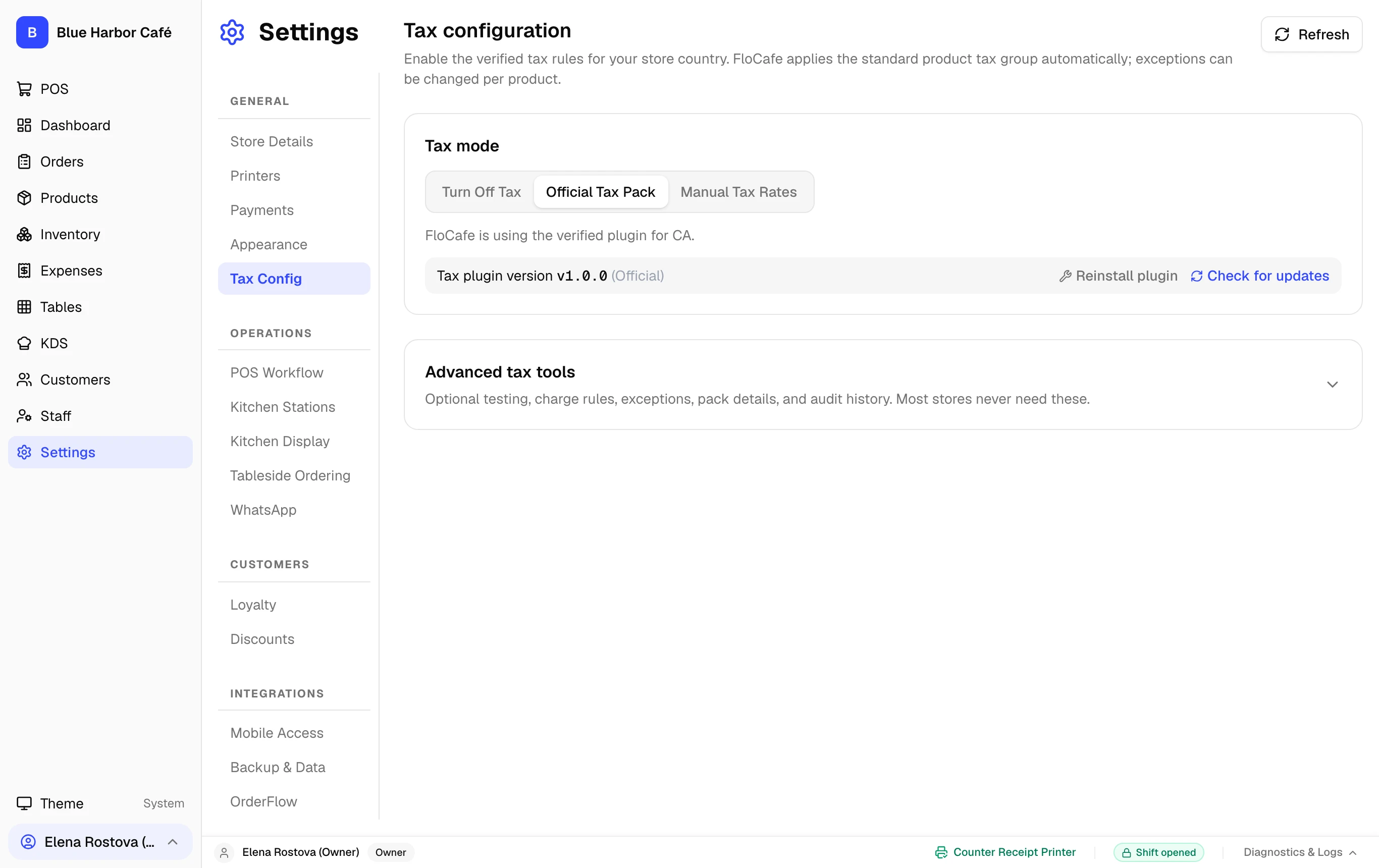
On first launch, FloCafe presents the Store Setup Wizard. This 6-step wizard establishes the owner credentials, regional currency, catalog structure, security PINs, and service model. Note: Tax rates and custom tax packs are configured under Settings > Taxes & Localization after initial setup.
Interactive Screen Controls
Hover or tap markers to highlight
-
1
Country & Locale - Select jurisdiction (e.g. Canada) and regional display formatting.
-
2
Currency & Decimals - Currency code ($ CAD) and decimal rounding conventions.
-
3
Active Tax Packs - Configure Ontario 13% HST and exclusive vs inclusive pricing.
-
4
Timezone Setting - Set local business timezone for accurate end-of-day shift cutoffs.
Step-by-Step Walkthrough
Follow these instructions in sequence to complete the setup:
1
Language, Country, Currency & Timezone
Select your interface language, operating country (e.g. Canada), currency symbol (CAD - $), and local business timezone (e.g. America/Toronto). FloCafe automatically sets up financial precision and business date boundaries.
Regional Settings Are Authoritative
Currency and tax decimal formatting apply to all past and future orders. Confirm your store currency before recording live transactions.