
Prerequisites & Requirements
- Access to network router or printer IP.
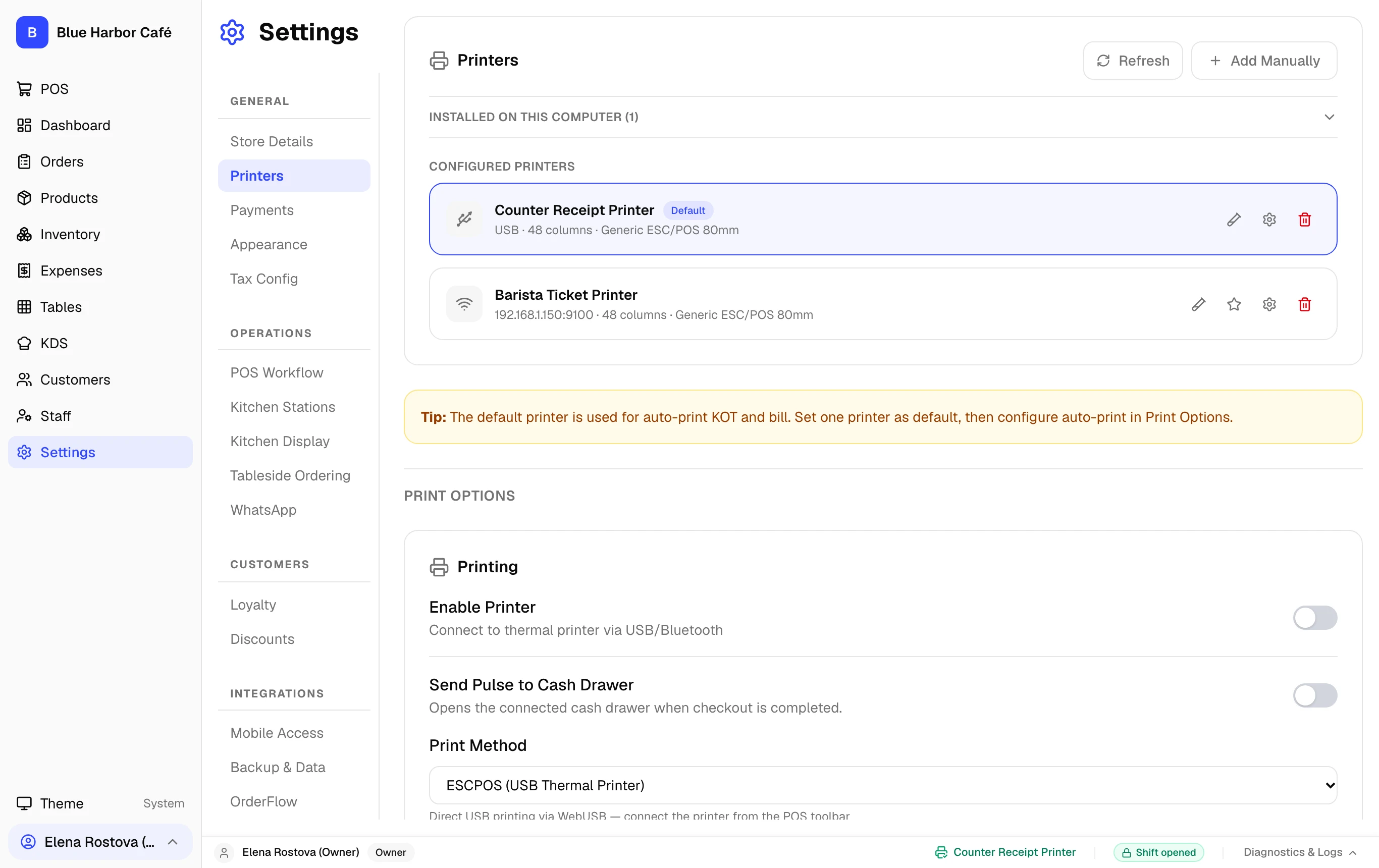
When a network printer shows offline, 90% of failures are caused by router DHCP assigning a new IP address to the printer after a power cycle.
Architecture & Workflow Diagram

Step-by-Step Walkthrough
Follow these instructions in sequence to complete the setup:
1
Check Physical Link Light
Look at the Ethernet jack on the back of the printer. Verify the green LINK light is glowing and the yellow ACTIVITY light flickers.
Operating System Instructions
Verify network reachability and raw TCP port 9100 using PowerShell:
- Open PowerShell and run:
Test-NetConnection -ComputerName 192.168.1.150 -Port 9100 - If
TcpTestSucceeded : Trueis displayed, network connectivity is healthy. - If it fails, verify Windows Defender Firewall is not blocking outbound LAN connections on port 9100.
Verify raw socket connection to port 9100 from Terminal:
- Open Terminal and test the socket:
nc -zv 192.168.1.150 9100 - You should see:
Connection to 192.168.1.150 port 9100 [tcp/*] succeeded! - If unreachable, test basic IP routing:
ping -c 3 192.168.1.150.
Check network port availability using netcat or telnet:
- Run:
nc -zv 192.168.1.150 9100 - If connection times out, verify your subnet routing and ensure UFW firewall allows outgoing traffic to your kitchen subnet:
sudo ufw status.