
Prerequisites & Requirements
- KDS opened on secondary screen.
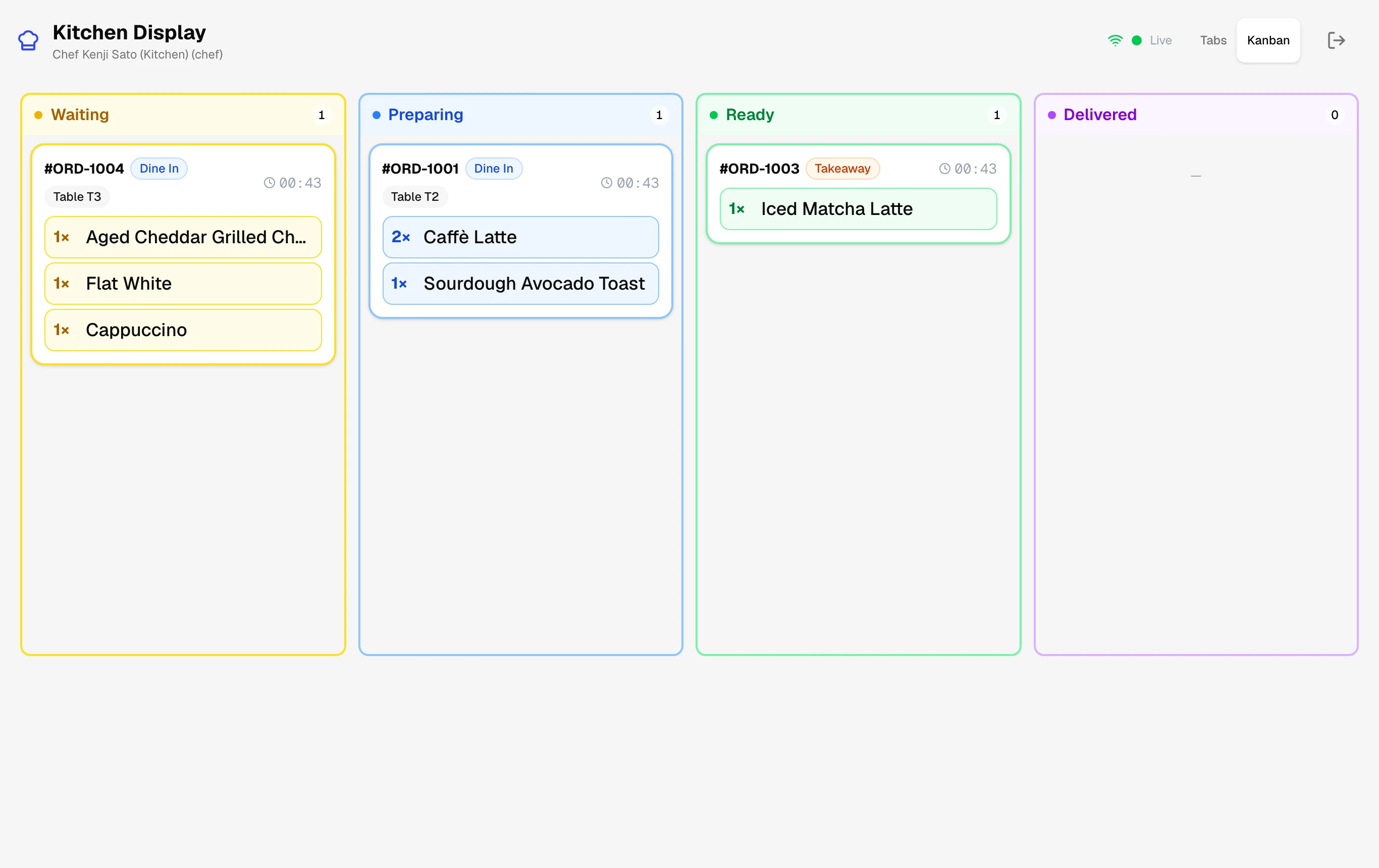
KDS cards show order number, table or takeaway, elapsed timer, items, and special instructions. Staff tap cards to progress orders through preparation.
Interactive Screen Controls
Hover or tap markers to highlight
-
1
Ticket Header & Timer - Order number, dine-in table or takeout status, and elapsed preparation timer.
-
2
Item Modifiers & Notes - Real-time customizations, milk choices, and special kitchen instructions.
-
3
Bump / Status Button - Advance ticket from Pending to Cooking, Ready, and Completed.
-
4
Station Switcher - Filter tickets by kitchen station (e.g. Barista vs Kitchen).
Step-by-Step Walkthrough
Follow these instructions in sequence to complete the setup:
1
New Order Alert (Received)
When an order is placed in the POS, a new ticket immediately appears with an audible chime. Yellow banner indicates Pending.
Undo Bumping
Accidentally bumped a ticket? Tap the Recent History tab at the bottom to restore any order back to the active board.