
Prerequisites & Requirements
- ESC/POS compliant thermal receipt printer connected via USB cable.
- Thermal paper roll (80mm or 58mm) loaded correctly with paper feeding from bottom.
FloCafe communicates natively with ESC/POS thermal printers via direct USB and system spoolers. Blue Harbor Café uses an 80mm USB receipt printer at the counter.
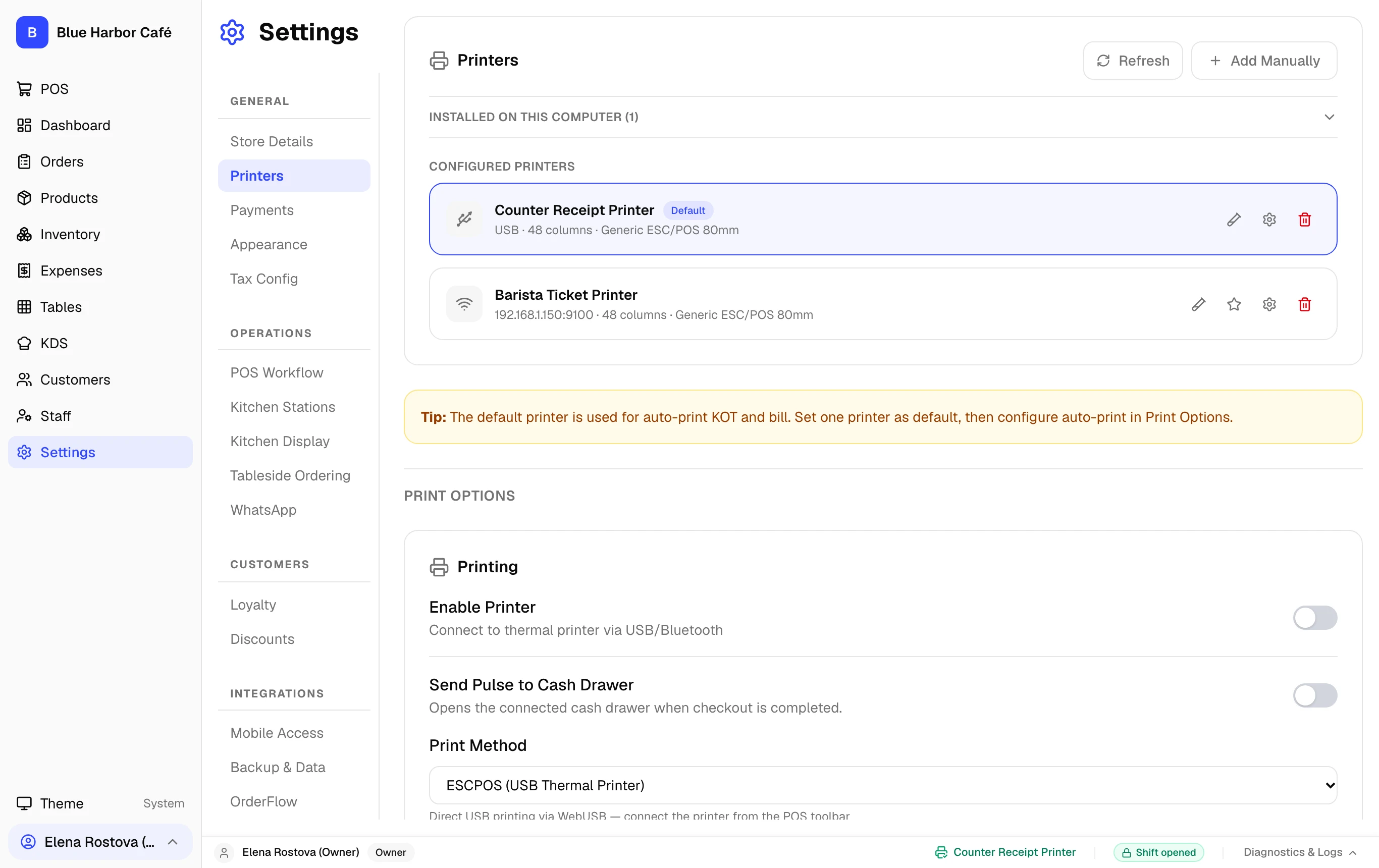
Interactive Screen Controls
Hover or tap markers to highlight
-
1
Installed Printers List - Active receipt, kitchen, and bar thermal printer connections.
-
2
Add Manually Button - Register a USB or IP thermal receipt printer.
-
3
Test Print Action - Send test ESC/POS alignment slip to verify connection and paper feed.
-
4
Paper Width Selection - Standard 80mm wide receipt vs 58mm compact printer format.
Step-by-Step Walkthrough
Follow these instructions in sequence to complete the setup:
1
Connect Printer via USB
Plug the printer USB cable into the FloCafe host computer and power the printer on.
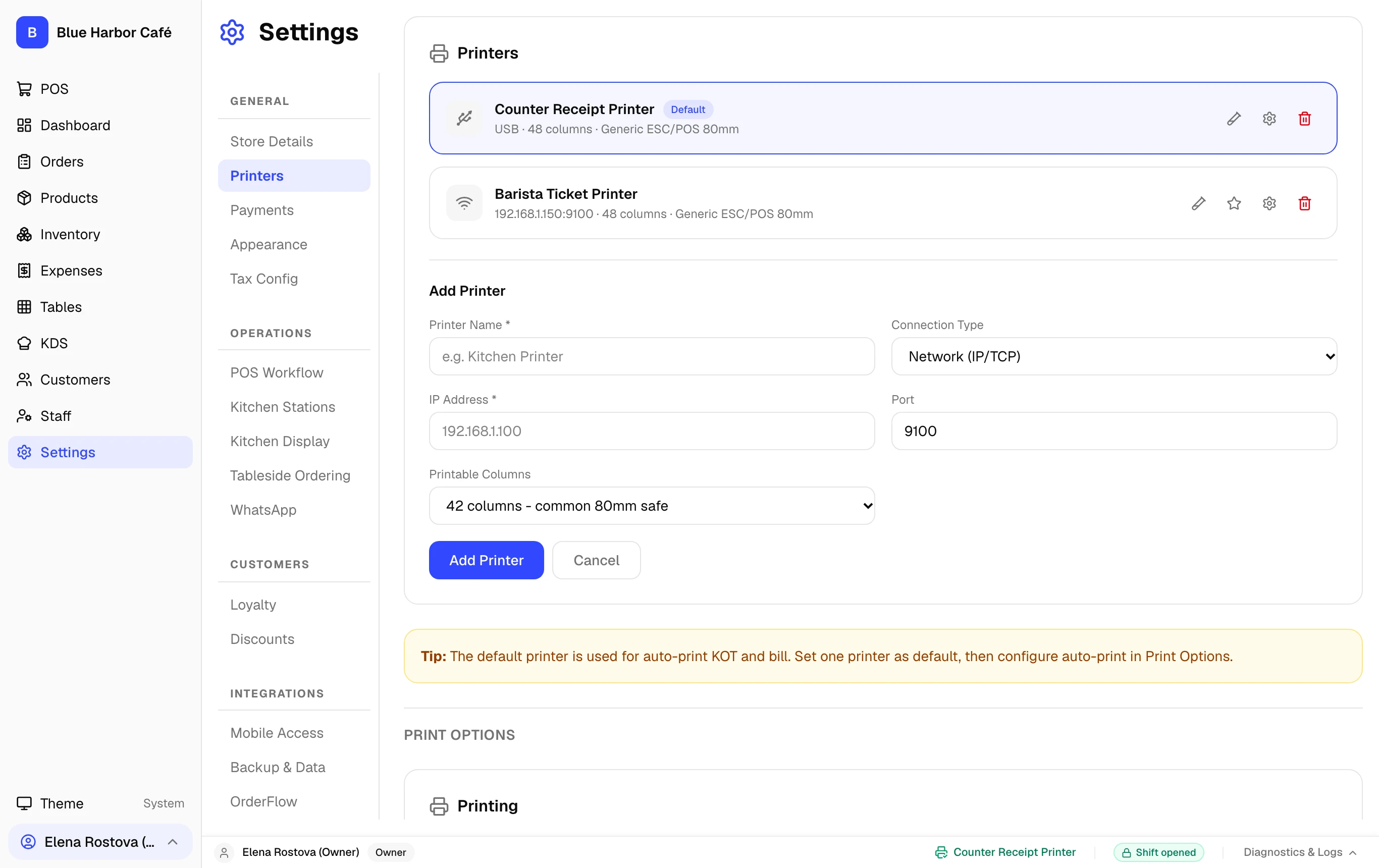
Direct ESC/POS vs System Driver
FloCafe prints high-speed raw ESC/POS commands without slow OS print dialogs, cutting print latency to under 300 milliseconds.
Operating System Instructions
On Windows, USB thermal printers mount via the Windows Print Spooler as virtual USB ports (USB001). If printing halts during service:
- Open Control Panel > Devices and Printers.
- Right-click your receipt printer > Printer Properties > Ports.
- Ensure Enable bidirectional support is unchecked if your vendor driver locks raw ESC/POS queues.
On macOS, FloCafe communicates directly via raw USB or CUPS:
- Verify printer detection in System Settings > Printers & Scanners or run
lpstat -pin Terminal. - If adding via CUPS, open
http://localhost:631and ensure the queue uses the Raw ESC/POS driver.
On Linux, ensure the user running FloCafe has permission to write to raw USB printer nodes:
- Run
sudo usermod -aG lp,dialout $USERto grant access to/dev/usb/lp0. - Log out and log back in for the new group permissions to take effect.