
Prerequisites & Requirements
- FloCafe running on host computer.
- Secondary display or tablet connected to the same local WiFi router.
FloCafe includes a built-in KDS server running on port 3002. Any browser on your local network can open the KDS with no software installation required on the tablet.
Architecture & Workflow Diagram

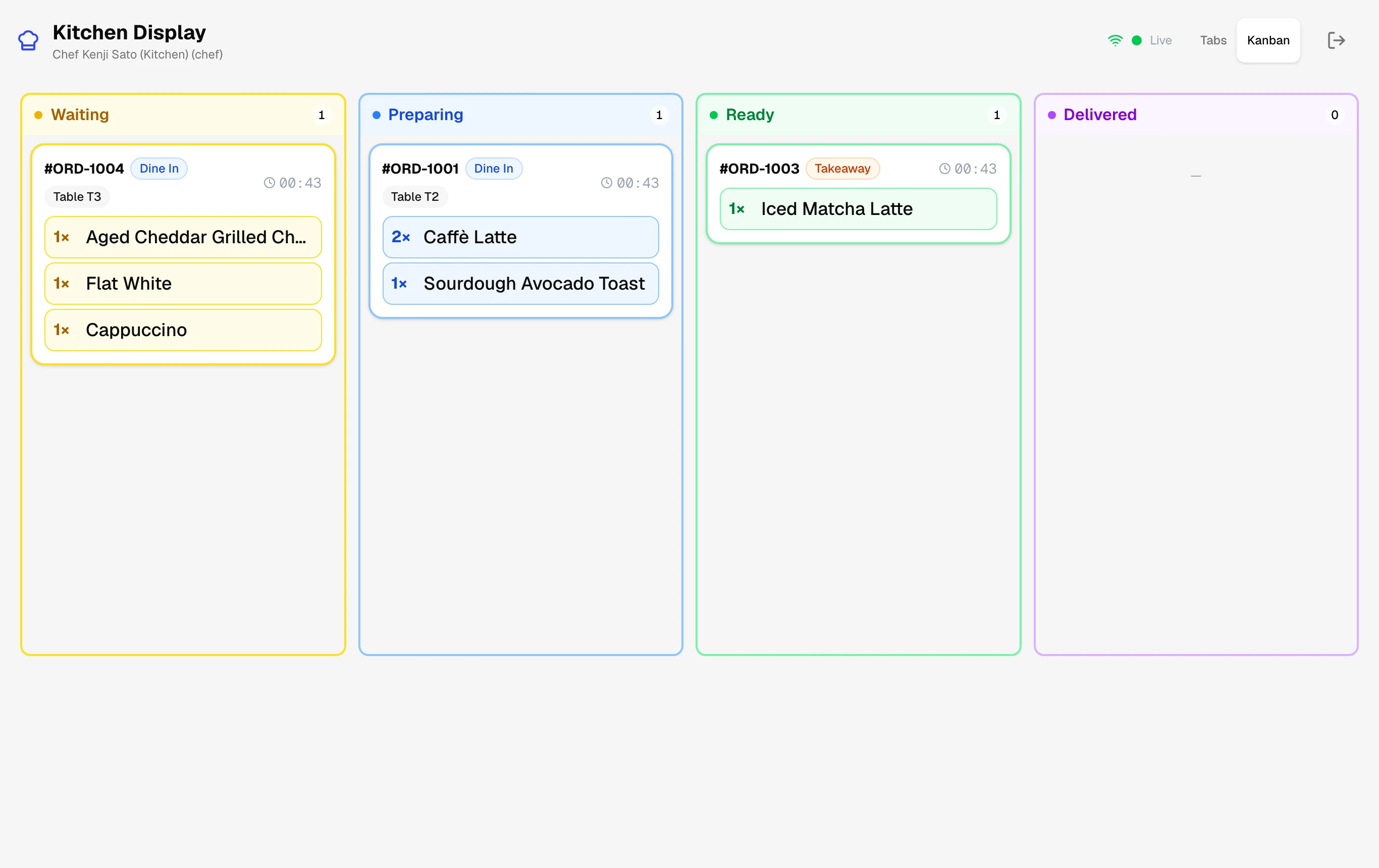
Step-by-Step Walkthrough
Follow these instructions in sequence to complete the setup:
1
Find Host Computer IP Address
In FloCafe on the host computer, go to Settings > Kitchen Display. Note the displayed URL (e.g.
http://192.168.1.100:3002/kds-standalone).
Full-Screen Kiosk Mode
Add the KDS webpage to your tablet home screen or press F11 on PC browsers to run in clean distraction-free full-screen mode.