
Prerequisites & Requirements
- Open cash shift (if shift enforcement is active).
The POS interface is optimized for speed during rush hours. Clean category navigation and 1-tap item entry keep order turnaround under 15 seconds.
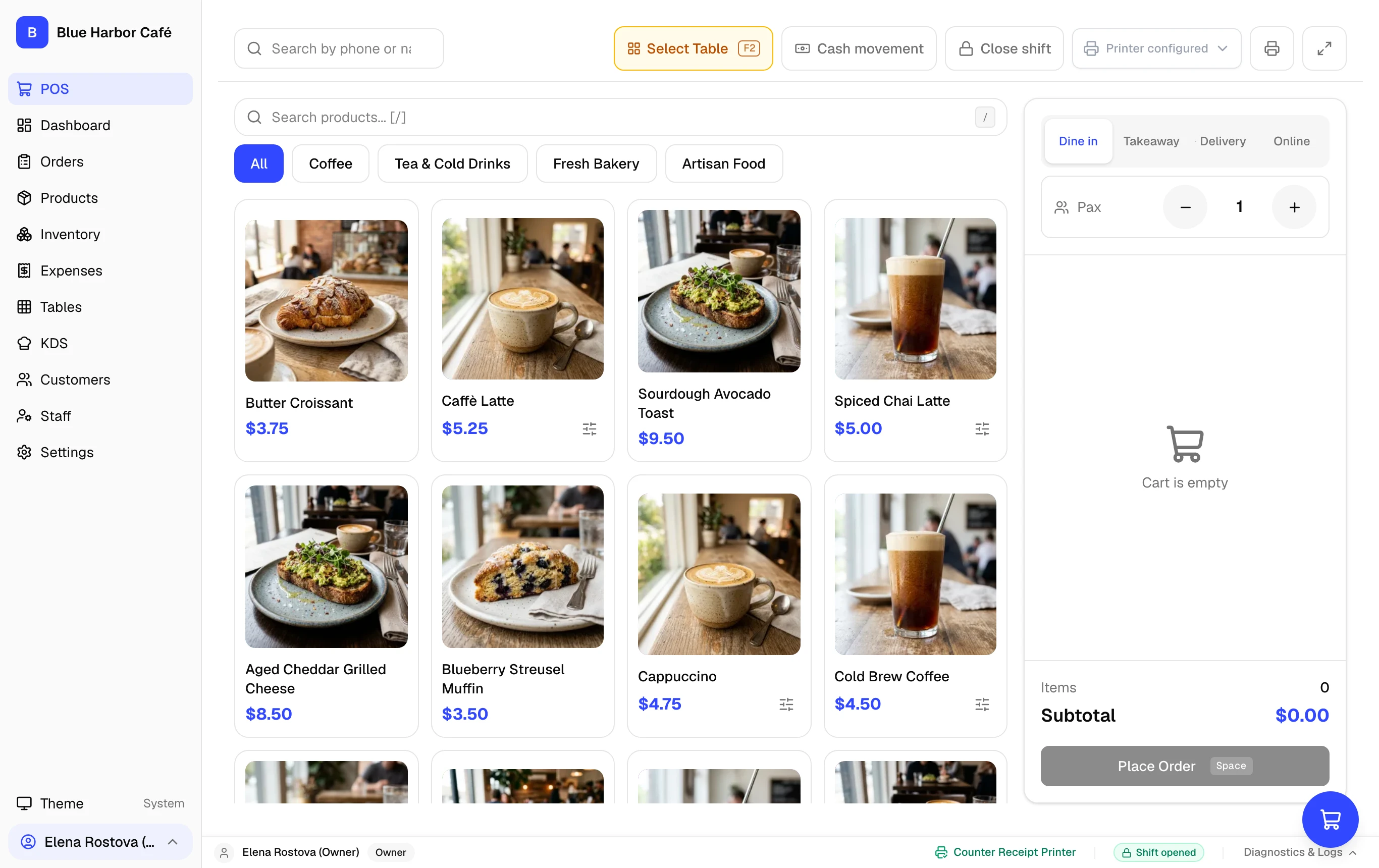
Interactive Screen Controls
Hover or tap markers to highlight
-
1
Category Selector - Switch between menu categories (Coffee, Tea, Bakery, Food).
-
2
Product Grid - Tap items to add to order; displays pricing and item details.
-
3
Active Cart & Order Totals - Real-time calculation of subtotal, applicable taxes (e.g. 13% Ontario HST), and grand total.
-
4
Payment & Action Controls - Complete checkout, print bill, apply discounts, or hold table orders.
Screen Anatomy
The POS interface is split into three main zones:
- Top Bar: Quick customer lookup, order type switcher (Dine-in, Takeaway, Delivery), active table indicator, and staff status.
- Catalog Grid (Left): Category tabs across the top and product tiles with bold prices and stock status badges.
- Cart & Checkout Panel (Right): Itemized list of selected items, modifier summaries, subtotal, taxes, charges, and primary action buttons (Hold F8, Place Order Space).
Step-by-Step Walkthrough
Follow these instructions in sequence to complete the setup:
1
Filter by Category
Tap any category tab (Coffee, Fresh Bakery, etc.) to immediately filter visible products.